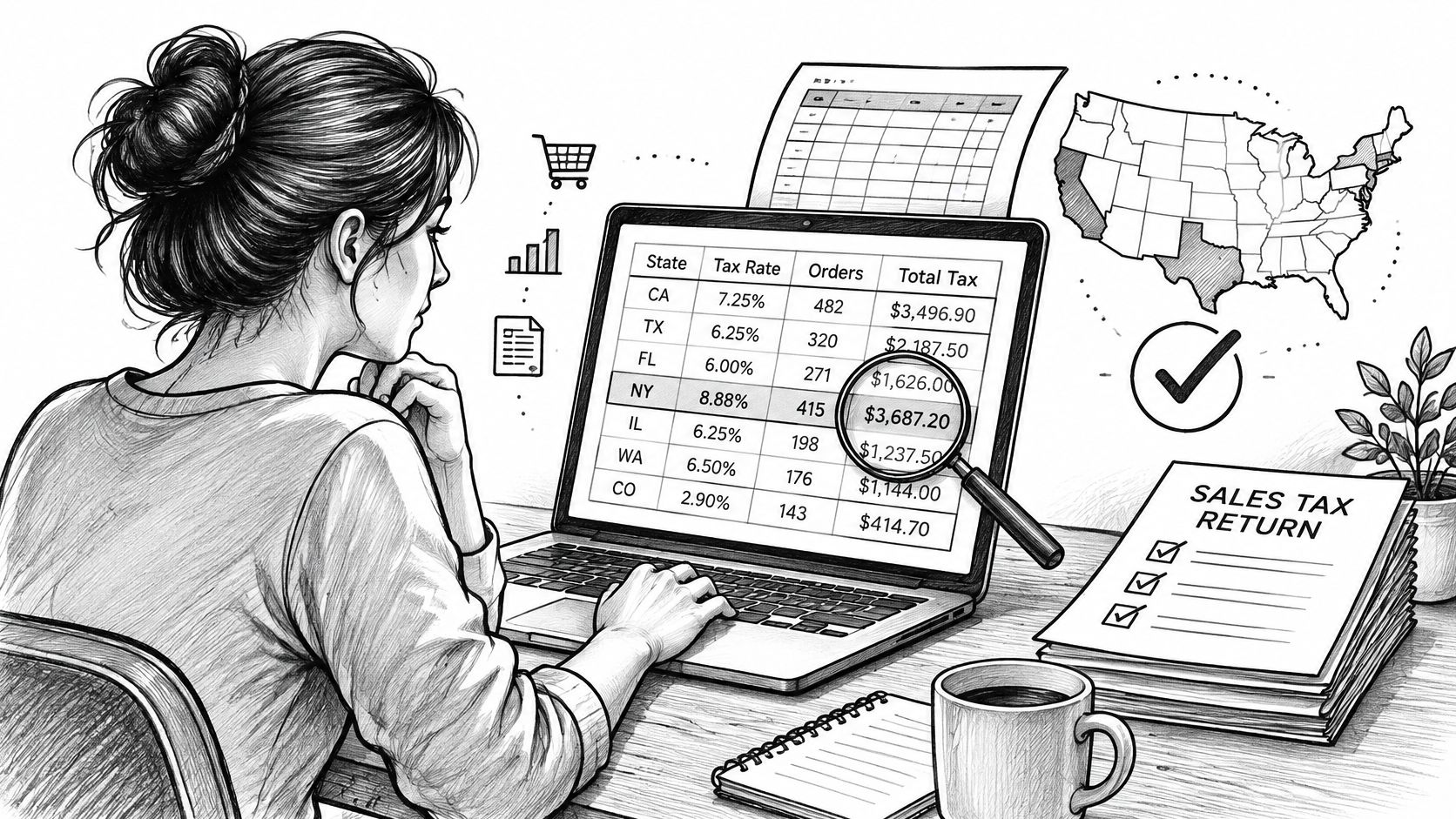
You've opened your BigCommerce sales tax report for month-end, but the tax total doesn't match the number your accountant expects. Some orders came through a marketplace, refunds crossed the reporting cutoff, and a tax line says API override. Before changing a rate or sending the file for filing, you need to establish which records explain the difference.
The practical approach is to export the native report, reconcile it against order-level tax records, and account for adjustments separately. Plain-English reporting can make the sales and refund analysis easier, but it doesn't replace the underlying tax records.
Table of Contents
- Export the Native Sales Tax Report Step by Step
- Read Tax Figures Without Mixing Them Up
- Reconcile the Report Against Order Tax Records
- Account for Refunds, Cancellations and Status Changes
- Check Jurisdiction Totals and Common Errors
- Confirm Your Tax Totals Before You File
Export the Native Sales Tax Report Step by Step
-
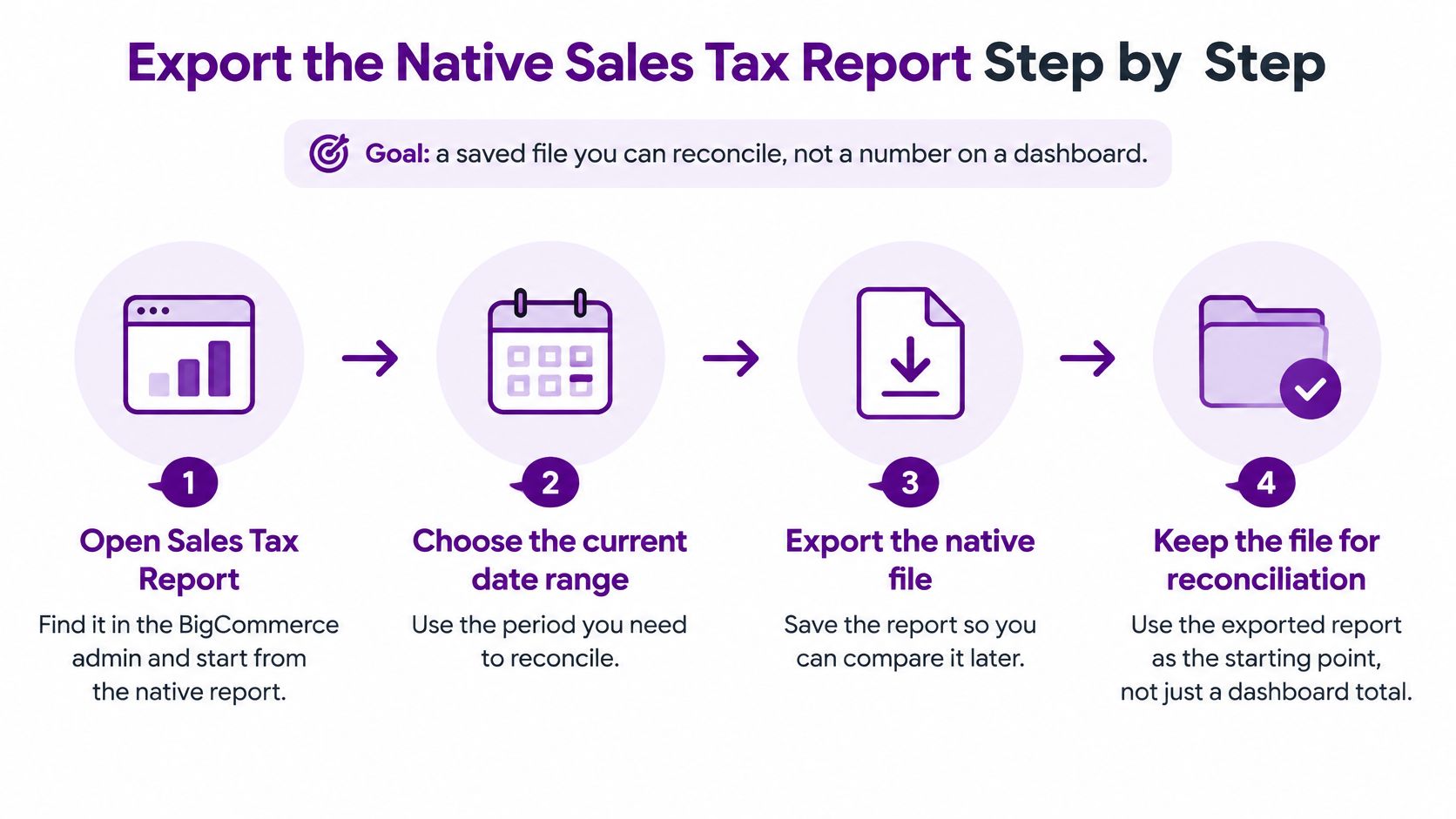
Open the Sales Tax Report in your BigCommerce admin. Use the native report rather than a general sales dashboard. If your navigation differs, consult BigCommerce's Sales Tax Report help article for the current location instead of following an older menu path.
-
Choose the period you need to reconcile. Match the start and end dates to your filing period, such as the beginning through the end of the relevant month. Don't compare a calendar-month export with an accounting report using a different cutoff.
-
Check the store time zone. Record it alongside the reporting period, and confirm which time zone your accountant uses. An order placed late in the evening can belong to a different reporting day under another time zone.
-
Export and preserve the original file. Include the reporting period and export date in the filename. Keep a later re-export as a separate version so you can identify changes instead of overwriting your evidence.
-
Open the file and inspect its fields. Confirm that you have period, tax type, tax rate, order count, and tax amount before building comparisons. A file that opens successfully isn't necessarily ready to reconcile.
Use this export sequence to keep the saved file, rather than a changing dashboard total, as your starting point.
Fields in the native Sales Tax Report
The native report aggregates recorded order values daily by tax type. That makes it useful for locating a discrepancy, but it doesn't give you the transaction detail needed to explain every adjustment.
| Field | What it contains | Use it to |
|---|---|---|
| Period | Date range covered by the row | Match it to your filing period |
| Tax type | Tax category recorded on the orders | Group totals by tax type before comparing |
| Tax rate | Rate applied to the orders in that row | Spot rate changes or layered rates |
| Order count | Number of orders aggregated in the row | Check against your order export |
| Tax amount | Total tax recorded for that row | Compare with order-level tax totals |
Keep a working copy for calculations and leave the original untouched. Record the selected dates, store time zone, export timestamp, and any filters in a reconciliation note.
Native BigCommerce Analytics, BigCommerce Insights, order exports, and third-party reporting apps aren't interchangeable evidence. Use the Sales Tax Report for its tax summary, order records for transaction detail, and broader analytics for performance questions. You should finish this step with a saved file and identifiable tax totals to investigate, not just a screenshot of the headline amount.
Read Tax Figures Without Mixing Them Up
Start by naming the amounts correctly. Gross product sales means merchandise sales before discounts and refunds; an order's gross total can also include shipping and tax, so don't assume those fields mean the same thing. Net product sales subtracts merchandise discounts and product refunds, while tax collected for a government should remain separate from sales revenue.
Profit requires cost information that a tax report doesn't contain. Neither a high tax total nor strong revenue establishes that a product has a healthy margin.
Pricing mode changes the comparison
BigCommerce supports tax-inclusive and tax-exclusive pricing, product tax classes, geographic tax zones, and rates assigned to those zones, as described in its Tax Overview. The store identifies the shopper's applicable zone before estimating taxes and displaying prices.
With tax-inclusive pricing, the displayed amount already contains tax. Comparing that amount directly with a tax-exclusive taxable base creates an apparent gap even when the calculation is correct.
For a hypothetical example, a $108 tax-inclusive order at an 8% rate contains $8 in tax and $100 in sales excluding tax. Multiplying the inclusive total by the rate would overstate the tax because you'd be applying tax to an amount that already includes it.
Practical rule: Keep tax in its own column. Don't fold it into merchandise revenue or subtract it twice.
Geography matters more than a blended percentage
Tax zones explain why identical products can produce different tax amounts for different shoppers. Product classification, exemptions, customer location, and the checkout rules also affect the result.
A zone can carry multiple rates, so an order needn't have a single tax line. Preserve the zone and rate context instead of dividing total tax by total store revenue and treating that blended percentage as the correct rate.
For performance reporting beyond tax, use consistent definitions across your BigCommerce analytics. Otherwise, merchandising and finance teams can appear to disagree because one report includes shipping and another measures product sales alone.
Reconcile the Report Against Order Tax Records
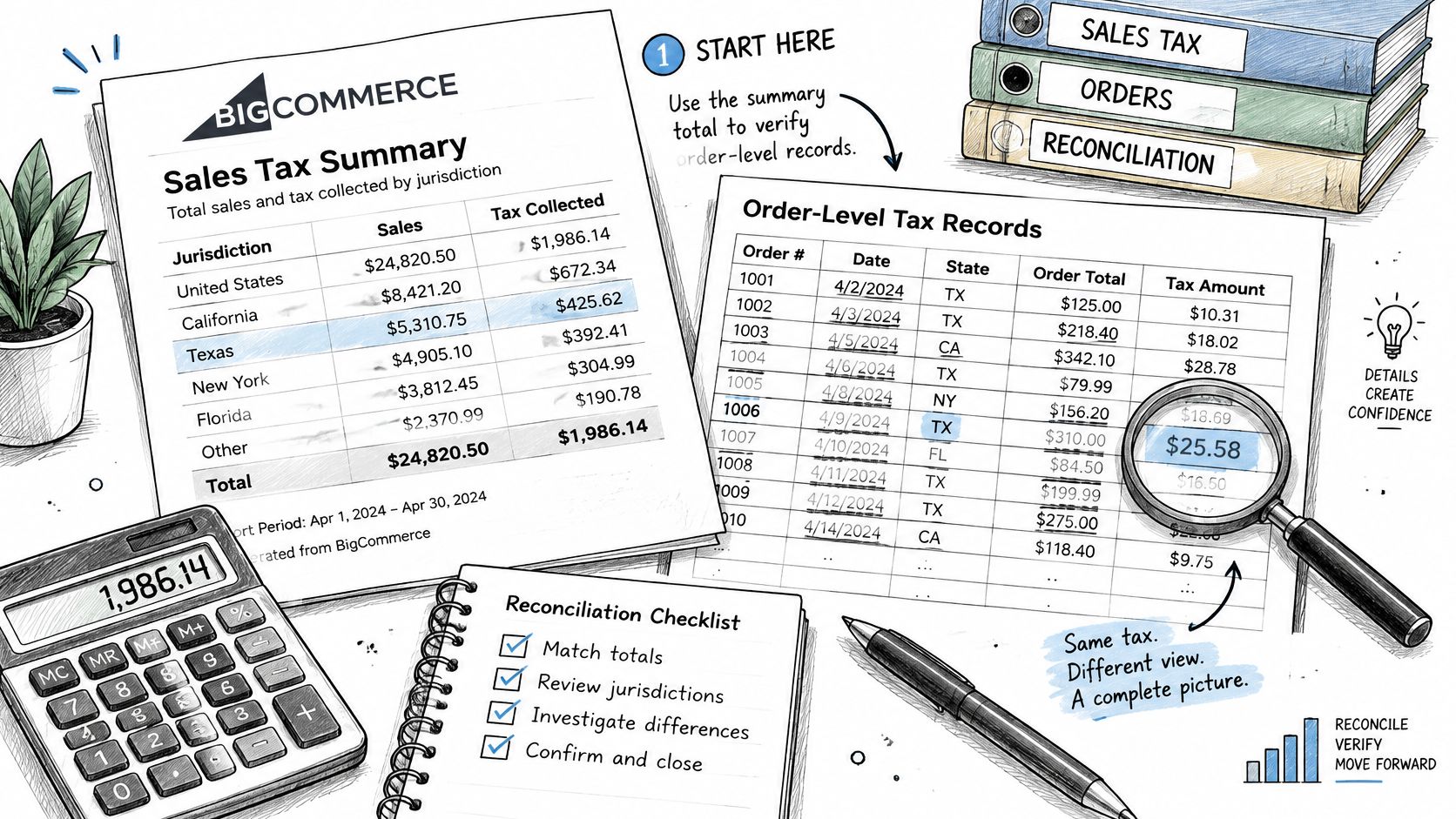
The Sales Tax Report is a summary, not a filing ledger. Use it as the control total, then prove that total against the order-level tax records underneath it. BigCommerce's Sales Tax Report documentation defines the summary fields and the API override classification you will meet during that comparison.
-
Keep the native export as your control file. Pull order details into a separate working dataset. Never overwrite the exported total with a recalculated figure until the difference is explained.
-
Retrieve each order's tax records through the Orders API. Have your developer or reporting specialist preserve the returned tax objects and join them to the corresponding orders. Group by jurisdiction, rate, tax class where available, and line-item type.
-
Separate the taxed components. Keep item, shipping, handling, and gift-wrapping tax distinct, and preserve the provider identifier so you can trace where each calculation originated.
-
Compare matching groups and investigate differences. Use the same period and compatible tax classifications on both sides. Record a cause for each variance instead of posting an unexplained balancing adjustment.
The working file should let you trace any summary amount down to the records that produced it.
Understand API override before correcting it
Orders created through the API, including marketplace orders, appear under API override in the report. The label means the tax was supplied or overridden through the API rather than calculated by the store's normal rules. It is not proof of an error. Confirm where the figure came from before changing the order or its tax treatment.
Common causes of variance between the report and order records
| Variance cause | How to check it | What to do |
|---|---|---|
| Refunds and cancellations | Compare refund records for the period | Show refunded tax on its own line |
| Late order edits | Compare order timestamps with the report run date | Re-export and reconcile again |
| Time zone boundaries | Check order time against the store and filing time zones | Adjust the cutoff and rerun the period |
| API override orders | Look for the API override label on the order tax | Keep as a separate line and confirm the source |
| External channel orders | Filter by source channel | Review marketplace tax separately |
Retain enough detail to explain the result
Keep order ID, tax identifier, jurisdiction, rate, taxable base, tax amount, source channel, and adjustment status on every row. Join product lines when you need to identify the SKU, the identifier used to distinguish a sellable item or variant.
On refresh, update existing records by order and tax identifiers instead of appending duplicate copies. For layered taxes, retain the endpoint's priority and priority amount fields so each component stays identifiable instead of collapsing into one blended rate.
The reconciled tax lines then feed the wider books. For that broader bookkeeping context, Snyp's guide to profitable accounting for online shops covers how ecommerce transactions roll up into the accounts as a whole. Keep any variance you cannot explain in an exception log with an owner and a resolution status, visible on its own rather than absorbed into the monthly total.
Account for Refunds, Cancellations and Status Changes
A refund isn't necessarily a reversal of merchandise alone. BigCommerce creates a refund quote before creating the refund; the quote provides tax, total refund amount, and available payment methods, and the refund documentation includes an example totaling $20.83 across product cost, shipping, and tax.
BigCommerce also supports a tax-exempt custom order-level refund using item type ORDER and a specified amount. Don't automatically assign that amount to a product or infer a tax reversal from it.
Separate the financial components
- Retrieve refund records for the reporting period. Preserve both the refund date and the original order reference.
- Split the available components. Separate merchandise, tax, shipping, and custom amounts instead of assigning the entire refund to product sales.
- Review cancellations and payment-status transitions. A status label alone doesn't establish which amounts were refunded.
- Calculate net collected tax separately. Subtract refunded tax from collected tax, while retaining both figures visibly.
A product return and a financial refund aren't interchangeable events. If your available records describe only the refund, don't label it as a physical return without supporting return data.
Status changes can alter tax documents
For Avalara Premium, BigCommerce submits tax documents when an order moves from unpaid to paid and voids documents when it moves from paid to unpaid, according to its order status documentation. Paid, unpaid, and refunded transitions therefore deserve their own review when reconciling against the tax service.
Keep a transition log with the order, change timestamp, previous status, new status, and document outcome. Use a dedicated BigCommerce refund report to investigate refund components rather than trying to infer them from a reduced sales total.
Where each refund component belongs in net figures
| Refund component | Where it belongs | Watch for |
|---|---|---|
| Product refund | Subtract from product sales | Partial refunds on multi-item orders |
| Refunded tax | Show separately from product sales | Tax reversed without a product return |
| Refunded shipping | Show on its own line | Shipping refunded while goods are kept |
| Custom order-level refund | Show as its own line | Tax-exempt amounts entered manually |
| Total refund | Equal to the sum of all components | Compare with the refund quote |
Check Jurisdiction Totals and Common Errors
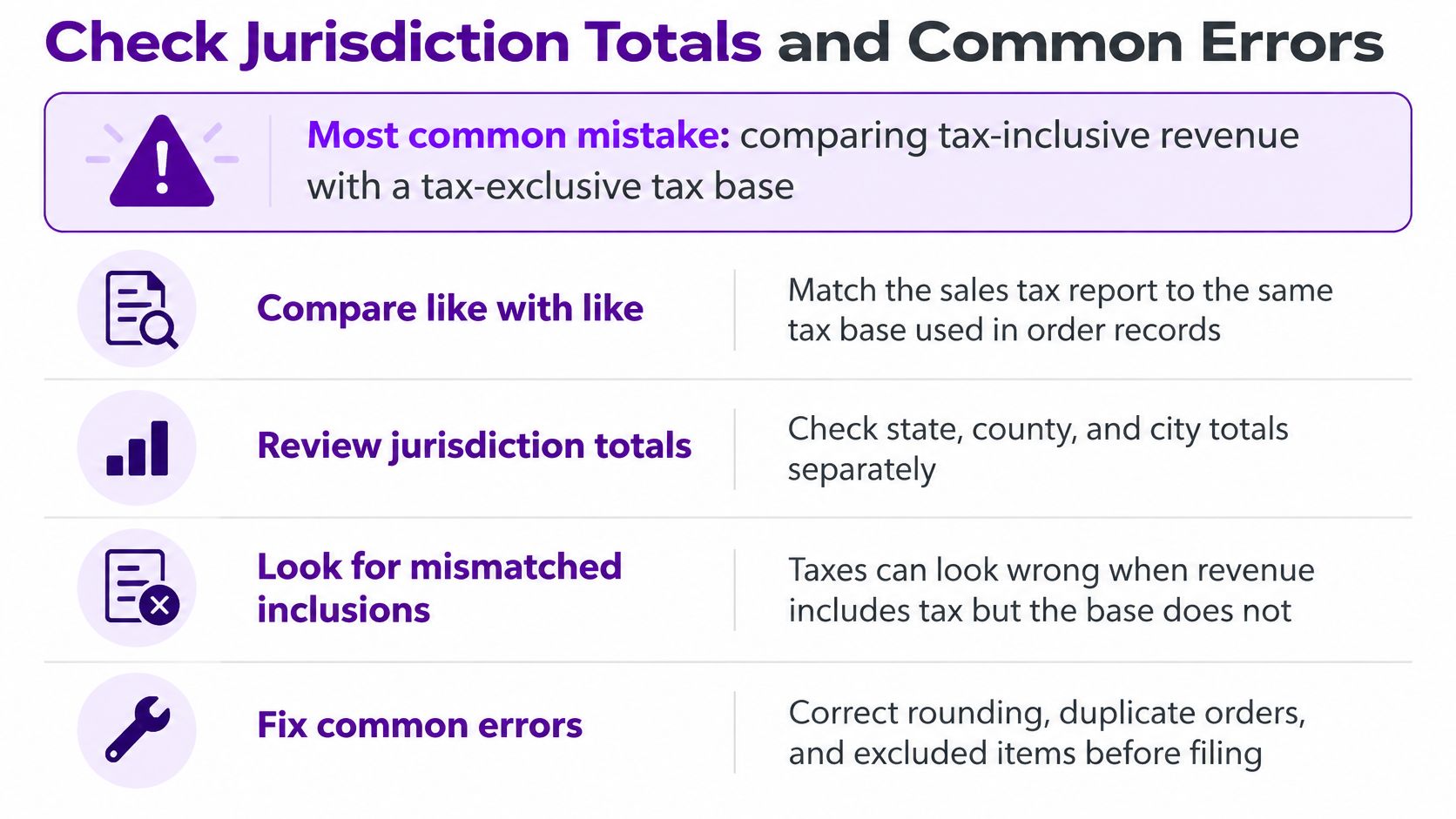
Comparing tax-inclusive revenue with a tax-exclusive taxable base can make correct orders look wrong. Before editing rates, establish that both sides of your comparison measure the same amount.
Capture the store's rounding strategy, tax zones, and pricing mode. Then classify orders by native checkout, API, marketplace, and automatic-tax-provider flow; BigCommerce's tax calculation documentation explains that, with automatic tax enabled, BigCommerce doesn't calculate sales tax for API-created orders, whose caller can supply tax-inclusive and tax-exclusive overrides.
Use this checklist when testing jurisdiction totals.
Test classifications, not just arithmetic
- Tax names: Group by jurisdiction and rate as well as the displayed name. A familiar name isn't a reliable geographic identifier.
- Duplicate levels: Choose a consistent aggregation level. Adding an order tax total to its component tax lines counts the same amount again.
- Calculation sources: Sample each order flow against its source calculation, including exemptions and rounding.
- Taxed components: Confirm that shipping, handling, and gift-wrapping amounts haven't been dropped from the comparison.
A matching grand total isn't enough if tax has been assigned to the wrong jurisdiction.
Build a state view from the underlying orders
The native Sales Tax Report's standard fields don't include a state column. Build the state breakdown by joining order-tax detail to order destination records, preserving taxable bases and jurisdiction information where available rather than inventing missing fields.
BigCommerce's tax rates and zones documentation describes country, subdivision, and postal-code zones, with postal-code zones limited to a single country. Keep state, county, and city components distinct where your records support them; don't assume a customer-state grouping captures every taxing authority.
The 2018 South Dakota v. Wayfair decision allowed states to impose collection obligations on remote sellers without physical presence, as explained in the decision published by California's tax department. Actual obligations still require jurisdiction-specific review.
Maintain taxable sales, collected tax, refunds, and exemptions by state. A BigCommerce sales-by-state report helps organize that review, but state revenue alone doesn't determine what belongs on a return.
Confirm Your Tax Totals Before You File
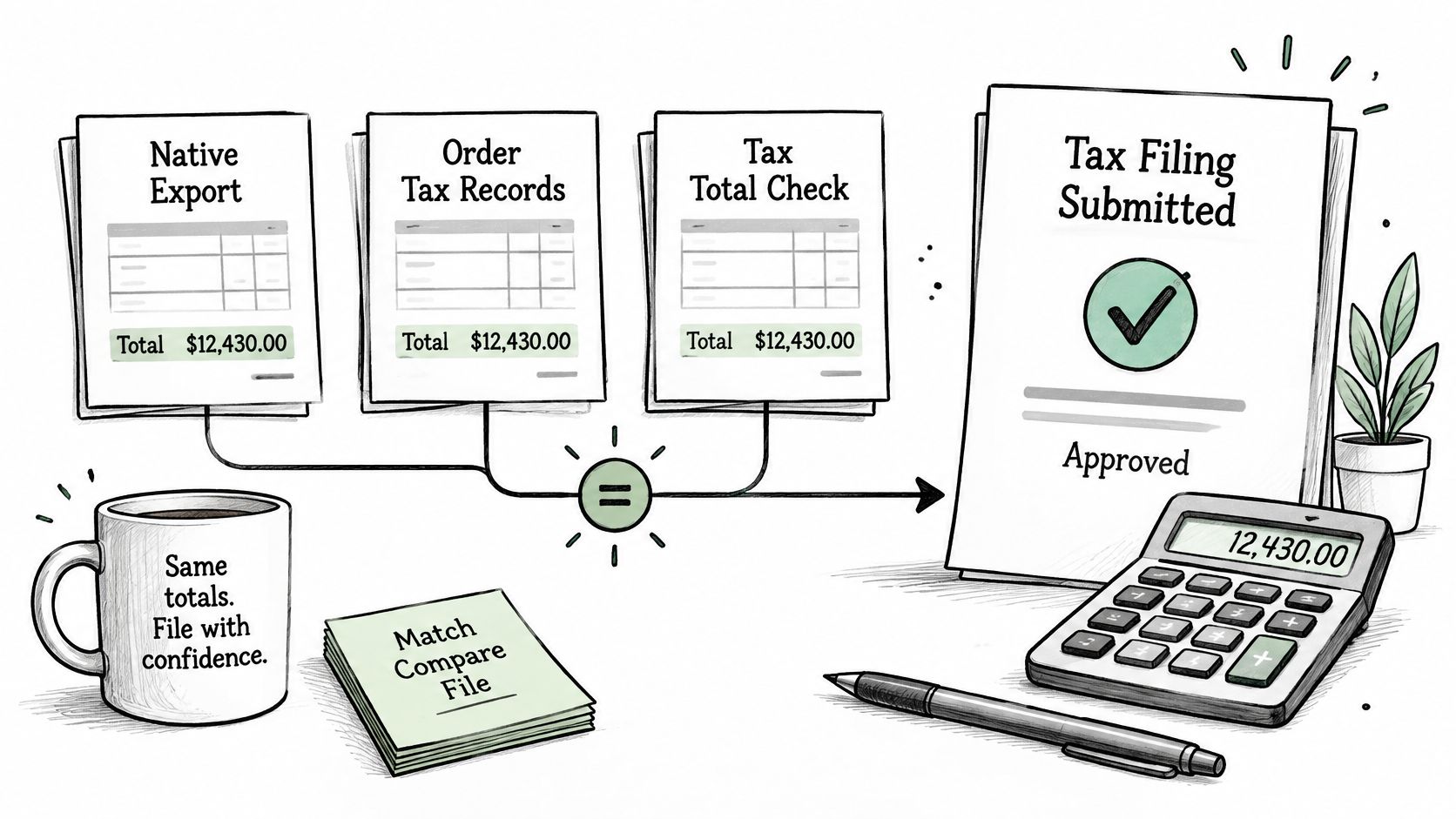
The filing gate is agreement among the native export, order-tax records, and refund or settlement data, with any remaining differences documented for review. Your accountant should receive the reconciliation and its exceptions, not just the final amount.
Keep the evidence connected throughout the verification process.
Use analytics to investigate the sales side
Chartsy is an e-commerce analytics and custom reporting platform for BigCommerce stores. Its AI-powered analysis lets you ask plain-English questions about sales, products, customers, and refunds and get charts instantly; it tracks revenue and product performance at store, category, product, and SKU levels, with PDF or PNG exports. Our BigCommerce Pro plan includes a 14-day free trial with no credit card required and can be cancelled anytime.
Start with “Show sales and refunds by customer state” for last month. Confirm the date range, customer-location definition, order-status treatment, and available refund fields before comparing the result with your tax records. Customer state is an analytical grouping, not automatically the legally applicable tax jurisdiction.
For teams also evaluating Australian return preparation, AI2Fin's BAS and GST return features provide a separate filing-workflow reference. Don't confuse an analytics report with a jurisdiction-specific return.
Use the accompanying video as an additional walkthrough.
Before filing: Resolve or explicitly flag each unexplained gap. Don't force the analytics total to match by deleting inconvenient records.
Chartsy helps you investigate BigCommerce sales and refunds through plain-English questions instead of rebuilding complex spreadsheets. Visit Chartsy, run last month's sales-and-refunds view by customer state, and compare it with your saved Sales Tax Report, recording each difference and its cause.

Written by
Chartsy TeamAnalytics team at Chartsy
The Chartsy Team writes guides, product updates, and resources to help SaaS and eCommerce founders make sense of their metrics, without SQL or spreadsheets.
Chartsy