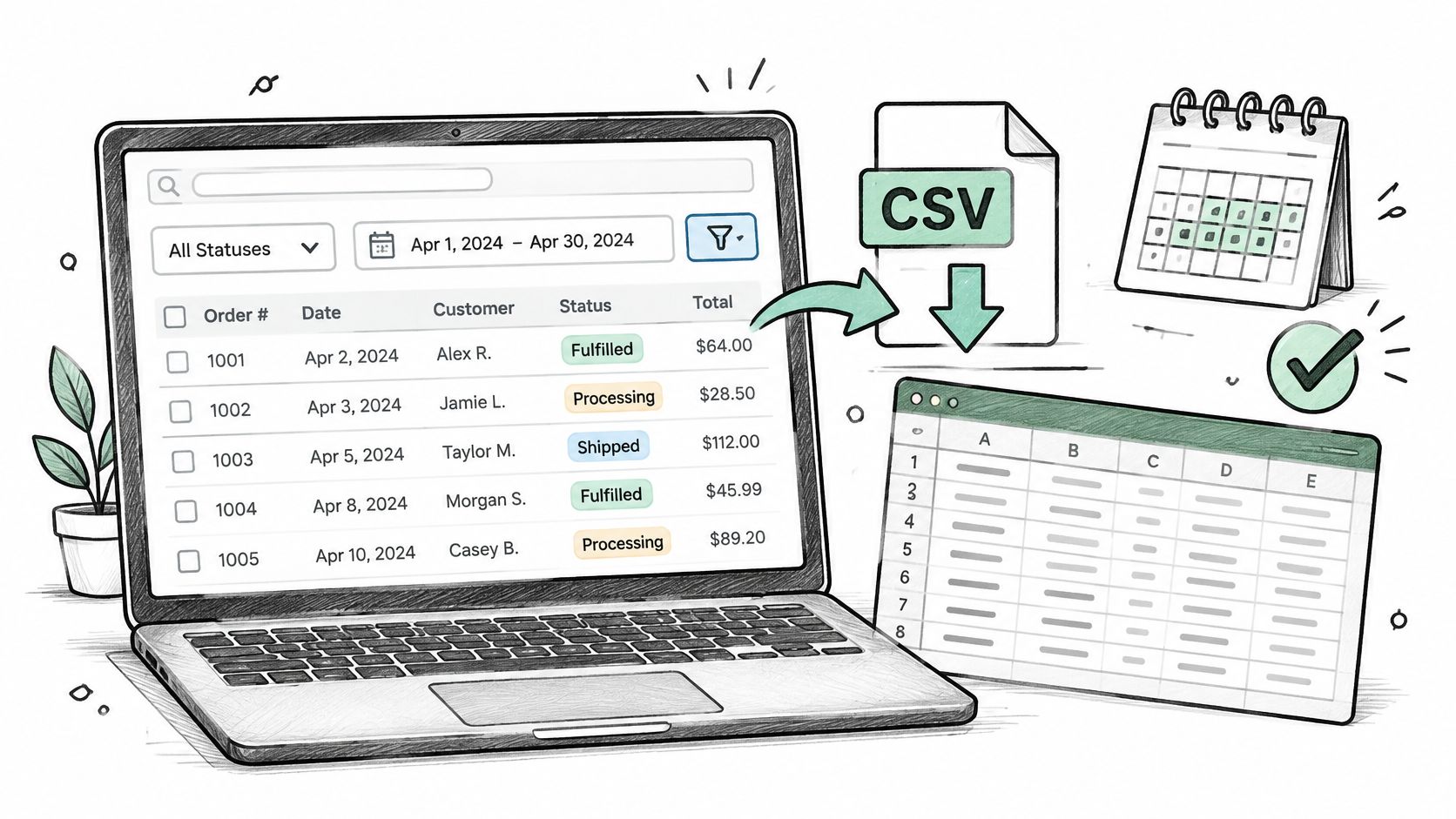
It's the first Monday of the month. You open the BigCommerce admin, set the date range to last month, click Export, and wait for the CSV. Then you sum the subtotal column and get a number that doesn't match the sales figure you remember from Friday's dashboard. Nothing is broken. You've just met the difference between a file and a report.
A BigCommerce export orders run gives you a CSV or XML file from the admin containing only the orders your filters matched. Every total inside it is arithmetic on a header record, taken before refunds settle and before anyone agrees what counts as a sale. The steps and filters you choose decide what those numbers mean, and the file on its own doesn't give final sales figures.
Table of Contents
- Export BigCommerce Orders Step by Step
- Order Export Fields and What Each One Answers
- Refunds, Discounts and Net Sales Your Export Can Miss
- Fixing Common Export Problems
- Build Your First Recurring Order Report
Export BigCommerce Orders Step by Step
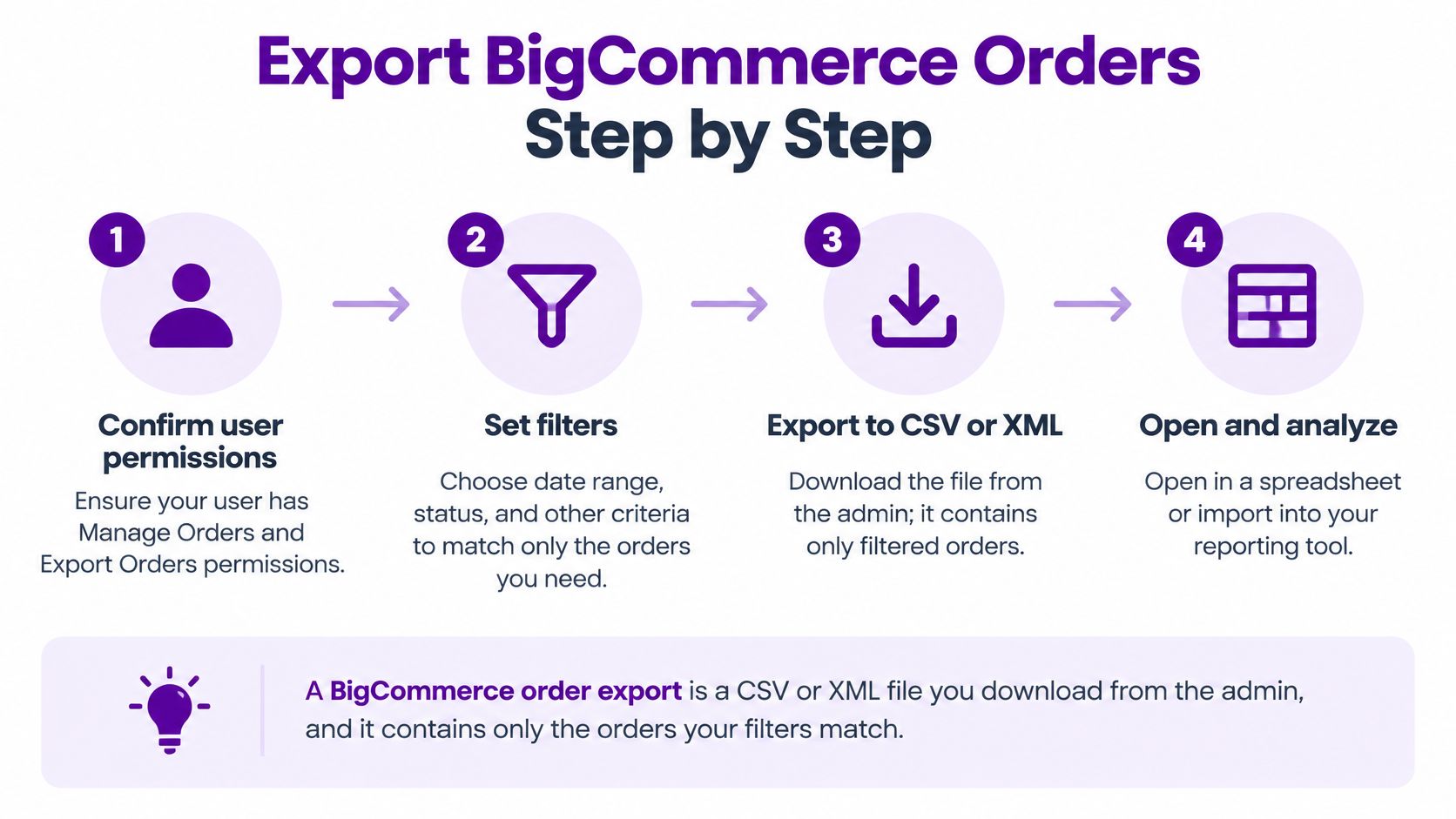
A BigCommerce order export is a CSV or XML file you download from the admin, and it contains only the orders your filters match. That's the mechanical answer, and BigCommerce's guide to importing and exporting orders confirms the scope: an export can cover an entire order set or a filtered subset, narrowed by criteria such as date range, shipping method, or order status.
Four decisions shape the file before you ever open a spreadsheet.
Get permissions and filters right first
Permissions come before everything else. A user needs both Manage Orders and Export Orders enabled to run an order export at all, and building or saving reusable templates needs Manage Export Templates on top of that, as the BigCommerce support documentation lays out. When a permission is missing, the export control doesn't appear greyed out. It isn't there, which is why the first troubleshooting step on a new staff account is always an administrator checking role settings.
Then set the filters. Date range, order status, and shipping method are the three that change the row count and the totals. Pick the status rule once and write it down somewhere the whole team can see. An export of completed orders only and an export that includes pending and cancelled orders are two different datasets wearing the same filename, and nobody remembers which one they ran three months ago.
Write the rule down. "September, order date, status completed, cancelled excluded, Export all." Six months from now that sentence is the only thing that will let you reproduce the file.
Choose Export all, pick a template, then a format
Two choices change the contents more than any other. The first is scope. BigCommerce separates exporting everything that matches your search from exporting the page you're looking at, and its documentation states that "Export all" includes every order matching the search results, not merely the first page. A page-only export looks healthy because the file opens and the dates look right, but it drops older orders and nobody notices until someone reconciles against the admin.
| Option | What it includes | Best for |
|---|---|---|
| Filtered export | Only orders matching the date range, shipping method or order status | Monthly or channel-specific reports |
| Export all | Every order matching the current search, across all pages | Full history and reconciliation with admin totals |
| Current page only | Orders visible on the current screen | Quick spot check of recent orders |
| Default template | The standard set of order attributes | First exports and simple totals |
| Custom template | Only the attributes and formats you choose | Repeat reports with fixed column layouts |
| CSV | Comma-separated text | Spreadsheets and most reporting tools |
| XML | Structured markup | Developers loading orders into another system |
The second choice is the template. Use the default template for a one-off file and stop thinking about it. For anything you'll run again, build a custom template, which controls which order attributes appear and how they're formatted, so the column order and date format stay identical month to month. Then pick a format: CSV for spreadsheets and most reporting tools, XML when a developer is loading orders into another system.
Check the file before you trust it
Open the file and check four things. One row per order, with no duplicated IDs. Every date inside the range you set, which catches a filter you forgot. A row count that matches the number of orders the admin shows for the same filters. And one spot-checked order whose subtotal and tax total match the order detail screen.
Say you run a September review. You filter by order date for the month, exclude cancelled orders, use Export all, and save a template named for the report so next month's file has the same columns. Menu labels shift a little depending on store setup and plan, so match what you see rather than a screenshot from an older guide.
Order Export Fields and What Each One Answers
The standard fields are few, and each one answers a specific question. Once you know which column answers which question, you also see where the file runs out.
| Field | What it holds | Question it helps answer |
|---|---|---|
| Order ID | Unique order number | Which orders belong in a report and whether any repeat across runs |
| Customer ID | Account identifier for registered shoppers | How many distinct customers bought in a period |
| Customer name, email, phone | Contact details for the buyer | Who placed the order, handled under your privacy policy |
| Order date | Date the order was placed | Monthly and period-over-period sales |
| Order status | Stage of the order | Whether pending, shipped or cancelled orders belong in the total |
| Subtotal including tax | Item totals with tax included | Gross sales when tax is part of the price |
| Subtotal excluding tax | Item totals before tax | Sales figures that exclude tax |
| Tax total | Tax charged on the order | Tax collected for the period |
| Line items, refunds, shipments | Separate records, not among the standard fields listed | SKU, variant and refund questions that need item-level data |
Order ID is the key that makes everything else work. It's how you deduplicate overlapping runs and how you join to anything else. Customer ID only exists for registered shoppers, so a shop with heavy guest checkout will undercount distinct buyers if you rely on it alone. Order status is the field people misuse most, because it describes where an order sits in fulfillment, not how much money it represents.
Where the file stops being enough
An order export is a header-level view with one row per order. BigCommerce keeps orders, products, taxes, shipments, addresses, coupons, transactions, and refunds as separate resources, and its Orders API overview describes them as distinct operations. That separation is the whole reason a CSV with only order ID, date, status, subtotal, and total can't tell you which SKU was refunded, whether the tax came back with it, or how a discount landed on a line.
A merchandising manager asks a perfectly normal question: which product variants earned the most net sales last month? The order file gives her the order count and the subtotals. The variant answer needs line-item data that isn't in that file. That's a different exercise, and this walkthrough of BigCommerce sales by SKU covers the item-level route.
The join rule. Link orders to line items by order ID, aggregate at the level you're reporting, and never sum the order totals again after joining a one-to-many table. One order with four products becomes four rows, and the subtotal repeats on every one of them.
Refunds, Discounts and Net Sales Your Export Can Miss
The most expensive habit in order reporting is treating the order total in an export as final revenue. It isn't. It's the value of what someone ordered at the moment the order was placed, and several things happen after that.
| Term | Plain meaning | Where to find it |
|---|---|---|
| Gross sales | Value of items ordered before discounts and refunds | Subtotals and line items on each order |
| Discounts | Reductions applied to prices or order totals | Coupon and discount data on the order |
| Refunds | Money returned to the customer, for items, shipping or the whole order | Refund records, separate from the original order |
| Tax | Sales tax or VAT collected on the order | Tax total on the order and tax records |
| Net sales | Gross sales minus discounts and refunds, usually excluding tax | Calculated from line items, discounts and refunds |
| Order status | Stage of the order, not a money total | Order list, used together with refund dates |
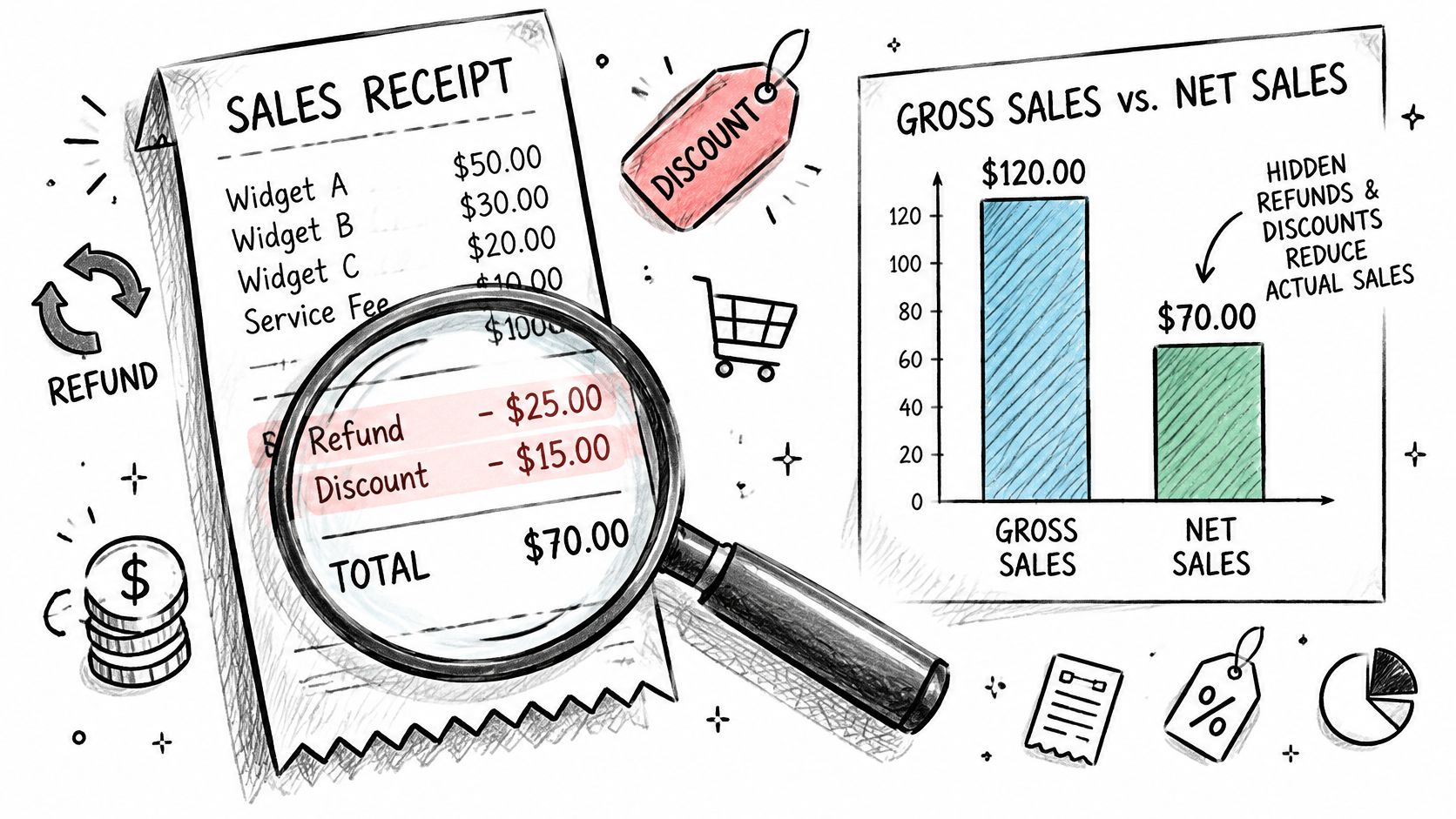
Net sales is the number finance teams want, and it's a calculation, not a column. Agree on the definition with whoever owns finance reporting before the first report ships, because whether tax and shipping sit inside or outside net sales changes the figure.
Refunds are messier than a subtraction
BigCommerce's refund documentation explains that refund operations can target product amounts, shipping, handling, or whole order-level amounts, and that refund quotes calculate tax, total refund amounts, and available payment methods. A refund is not just the item price coming back out of gross sales. Tax may come back with it. Shipping may or may not. Neither maps neatly to product revenue.
Timing adds a second problem. Payment execution happens asynchronously, and concurrent refunds on the same order aren't supported, so they need to be processed one at a time. An export run shortly after a refund is created can still show the original order as paid while the refund exists but isn't fully reflected. That's not a bug in your export, it's a reason to rerun the window later.
A hypothetical order makes it concrete. Say an order comes in at $120 with a $20 discount code applied and one item returned for a $30 refund. Gross sales are 120, discounts 20, refunds 30, and net sales land at 70 if you're excluding tax and shipping. Push tax inside the gross figure and the same order reports a different net number. Same file, same order, two answers.
Practically: pull orders by last update date, pull refunds by creation or update date, keep refund IDs so a rerun doesn't double count, and recalculate the previous month once more after it closes. Order exports line up much more cleanly with bookkeeping once refunds and tax sit in their own columns, which is the same structure a QuickBooks bookkeeping service will ask for at month end. If you'd rather see the revenue, product, and customer views side by side than rebuild them in a spreadsheet each month, BigCommerce analytics covers how that reporting layer is structured.
Fixing Common Export Problems
The complaint that arrives most often is that the file has fewer orders than the admin shows. Almost always the cause is a current-page export instead of Export all, or a filter that doesn't match what the admin view is using. Both are a one-minute fix.
| Symptom | Likely cause | Fix |
|---|---|---|
| Only the first page of orders appears | Current-page export used instead of Export all | Re-export with Export all and the same filters |
| Export option is missing | Manage Orders or Export Orders permission not enabled | Ask an account administrator to enable both |
| Cannot save or edit a template | Manage Export Templates permission missing | Request the permission or use the default template |
| Totals differ from admin reports | Different date range, status or currency filter | Match every filter, then compare counts and totals |
| Same order appears twice across runs | Overlapping date windows without deduplication | Remove duplicates by order ID |
| Refund missing from net sales | Refund dated after the export or not in the data pulled | Rerun the window using refund dates |
| Orders near month end in the wrong month | Time zone or boundary dates set inconsistently | Check the store time zone and use the same start and end rules each time |
Habits that stop the same problem returning
Name saved exports after their filters, not after the month. "Monthly completed, order date" tells the next person what the file is.
Keep the raw CSV before you clean, sort, or delete columns. Every reconciliation argument is easier with the untouched download.
Export one month at a time on stores with long histories, so a failed run costs you one month instead of an afternoon.
Use a small overlap window between periods and remove duplicates by order ID, which catches orders that were edited right at the boundary.
Check the store time zone. Orders placed near midnight land in the wrong month otherwise, and that's the error nobody catches until a quarterly review.
When a store is too large for a comfortable admin export, the Orders V2 REST API returns results in pages set by a page number and a limit, as the BigCommerce REST API overview describes. Retrieve batches, record the last completed page, and a failed run restarts from there instead of the beginning.
A problem that comes back every month needs a check built into the recurring run, not another one-off fix.
Build Your First Recurring Order Report
Pick one question and turn it into a fixed monthly report. Monthly sales by category including discounts and refunds is a good first one, because it forces you to separate the terms and it's short enough to verify by hand.

- Write the question and the definition. "September sales by category, net of discounts and refunds, tax excluded." The definition matters as much as the question.
- Export with fixed filters and a saved custom template, so the columns are identical to last month's file.
- Check the row count and totals against the admin using the same date, status, and currency filters. If they disagree, the filters disagree.
- Repeat monthly with the same rules and recalculate the prior month once after it closes. Late refunds arrive after the report goes out.
Step three is the one people skip, and it's the one that catches a wrong filter before a board deck contains it.
The file method works well when the report runs once a month and someone has an hour to spend on it. It gets expensive when four people want four variations. Chartsy's BigCommerce analytics lets you ask the question in plain English and get the chart back, down to store, category, product, and SKU level, with results exportable as PDF or PNG. If you want a fixed shape for the report and a stable set of columns, this guide to BigCommerce custom reports walks through building one.
A BigCommerce order export tells you what was ordered, not what you earned, and closing that gap is usually where the spreadsheet stops scaling. Chartsy connects to your BigCommerce store with read-only access, syncs order data hourly, and lets you ask questions like which variants generated the most net sales last month and get a chart instead of a CSV to rebuild. Start with the monthly category report you already know you need, and see how much of it you can get answered in plain English at Chartsy.

Written by
Chartsy TeamAnalytics team at Chartsy
The Chartsy Team writes guides, product updates, and resources to help SaaS and eCommerce founders make sense of their metrics, without SQL or spreadsheets.
Chartsy